

Table of Contents
Affiliate disclosure: This article contains affiliate links. If you purchase through one of these links, I may earn a small commission at no additional cost to you. I tested pCloud independently and have shared both what worked well and the limitation I encountered.
* * *
I had been hearing about pCloud and wanted to test it because I was looking for an answer to one simple question:
Can it be useful for everyday photo backup and file storage without becoming another complicated cloud system?
I already use cloud storage in different parts of my life, so form my pCloud review, I was not looking for another place to randomly dump files.
I wanted to see whether pCloud could do a few specific jobs well:
- back up mobile photos
- store files I may need while travelling or away from my computer
- scan and upload documents
- open files easily from mobile and browser
- share files safely
- recover deleted files without stress
- offer a storage option that does not depend only on monthly subscriptions
After testing it, I found that pCloud can be useful for mobile photo backup, everyday file storage, file sharing, and larger personal storage needs; as long as you are clear about what you want it to do.
But I would not review it as a full desktop-sync solution for Mac users like me, because I did not activate pCloud Drive on my Apple Silicon Mac.
I will explain that clearly below.
Considering pCloud for your own files or photo backup?
You can check the current plans and pricing here before reading the full review.
What I Tested
I tested pCloud mainly through its mobile app and web interface.
That matters because this review is not based on every possible pCloud feature.
I looked at how it worked for:
- mobile photo backup
- uploading and organizing files
- scanning documents
- choosing upload quality
- opening files in other apps
- sharing files with password and expiry options
- restoring deleted files
- checking whether it felt practical for everyday storage
I did not test pCloud as a full desktop-sync solution on my Apple Silicon Mac. I explain that limitation later in the article.
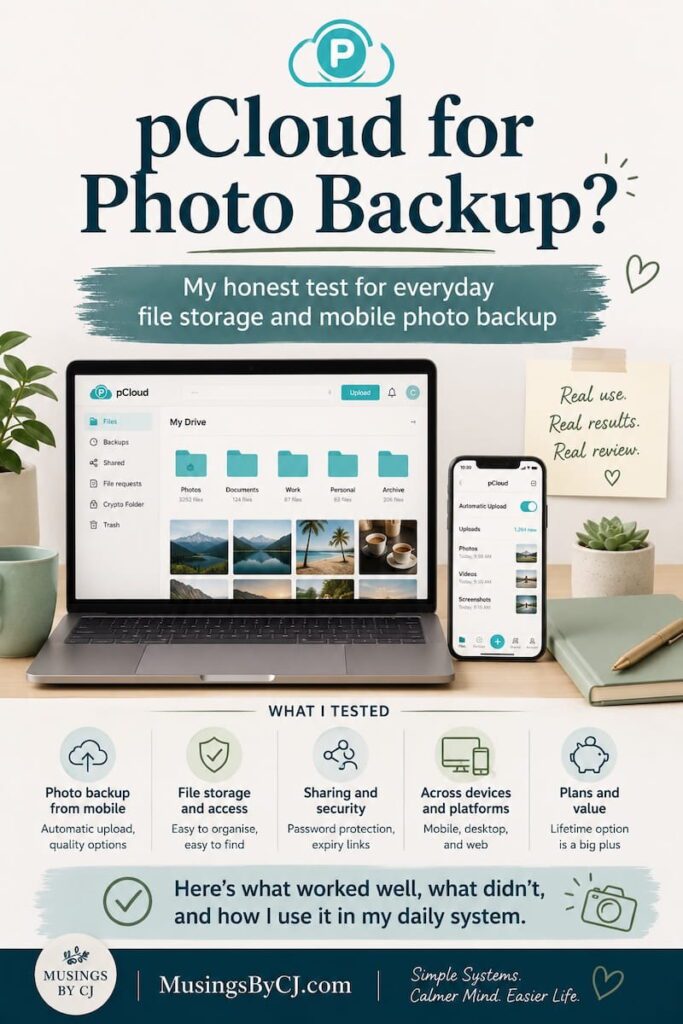
So this pCloud review is mainly about one question:
Does pCloud work well for mobile photo backup, everyday files, sharing, and simple cloud storage?
How Much Free Storage Does pCloud Offer?
pCloud advertises up to 10 GB of free storage, but the full amount is not available immediately.
My account initially showed 1 GB. After I verified my email address, uploaded a file, and signed in through the desktop and mobile apps, my available storage increased to 6 GB.
Additional space can be unlocked by enabling Automatic Upload and inviting friends. So, “up to 10 GB free” is accurate, but some of that storage must be earned through setup actions and referrals.
What pCloud Is Good For
Based on my test, pCloud worked well for a few specific everyday jobs.
- Mobile photo backup.
- Storing files that I may need when I am away from my computer.
- Opening or exporting files into other apps, including apps like Noteshelf, Notability, Pinterest, iCloud, Chrome, and Google services.
- Sharing files using links, especially because password protection and expiry dates make sharing feel more controlled.
- Another useful point was file recovery. I liked that when I restored a deleted file, I could choose where the restored file should go instead of just feeling like the file disappeared into some unknown place.
Individually, these features may seem small. But when a storage tool is supposed to reduce friction, small details matter.
Mobile Photo Backup
👉 Mobile photo backup is one of the primary reasons I started to consider pCloud; because Photos and videos are usually where storage problems begin.
They take up space quickly, and they are easy to forget until your phone starts warning you that storage is full.
I found mobile photo backup was one of the most useful parts of pCloud because it gave photos and videos a separate cloud storage home outside my usual phone storage.
pCloud’s mobile app supports automatic upload for photos and videos on iOS and Android. Once automatic upload is enabled, new photos and videos can be backed up to the pCloud account.
In everyday terms, this is useful if you want:
- a second place for mobile photos
- a way to reduce pressure on phone storage
- a cloud home for personal photo backup
- access to photos from browser or another device
- storage that is separate from your phone ecosystem
Of course, everyone doesn’t need pCloud just for photos. Many people may already be using iCloud Photos, Google Photos, or another photo backup system successfully.
And so if you are also like me, and want a separate cloud storage option for photos and files together, you might want to pCloud too.
Scanning and Everyday File Storage
👉 While I started to use it for photos and videos, eventually I also liked that pCloud can work for everyday files as well.
This matters because personal storage is rarely only one type of file. It usually includes:
- PDFs
- scanned documents
- receipts
- forms
- travel documents
- personal files
- photos
- screenshots
- reference files
- things you may need when away from your computer
The feature I particularly liked was being able to choose the scan quality while scanning a document: low, medium, or high. .
I would not claim that pCloud is the only tool that can do this. Other apps and cloud systems can also scan and upload documents.
But I liked having this inside the same storage flow and it has become an important part of your life admin system.
If I scan a receipt, form, travel document, or personal paper, it can go directly into a folder where I know it belongs.
That is the real value. Not scanning for the sake of scanning.
This helps in organising important documents from the word go and give them clear place to land.
Opening Files in Other Apps
👉 One practical thing I insisted on checking was whether pCloud works smoothly with the other apps I actually use.
This matters because storage is not useful if files get trapped inside one app.
I liked being able to open or send files to other apps and services through the iPhone and iPad sharing menu, including Noteshelf, Notability, Pinterest, iCloud, Chrome, and Google services.
This is partly because of the iPhone/iPad sharing menu, not only pCloud itself. But from a user point of view, it still matters because pCloud did not make the file feel trapped inside the app.
The file could move where I needed it to go and the option was available.
That makes pCloud more useful as part of a normal digital workflow.
For me, this is important because I do not want storage to become a separate universe.
If a file is in cloud storage, I still want to use it where real life needs it.
Sharing Files With More Control
File sharing is another area where pCloud felt useful.
👉 pCloud allows files and folders to be shared through links, even with people who do not have a pCloud account. Paid plans also offer password protection and expiry dates for shared links.
This is one of the features I really liked.
Sometimes you do not want to give someone access to a full folder system forever.
You just want to send a file or folder link that does not stay open forever.
The password and expiry options make that feel more controlled.
This can be useful for:
- travel files
- photos
- documents
- temporary sharing
- files you do not want available forever
- sharing with someone who does not use the same cloud system
Again, this is not about making pCloud sound magical.
It is simply a useful everyday feature.
Restoring Deleted Files
Another feature I found useful was restoring deleted files.
👉 pCloud has file recovery and history features, including Trash, Revisions, Rewind, and Extended File History options.
What I personally liked was the restore experience.
When I restored a deleted file, I could choose where the restored file should go.
This may sound small, but I have suffered because of this in the past and so I know how important this feature is.
Some cloud systems restore deleted files in a way that can feel less controlled. With pCloud, this felt clearer to me.
Recovery matters because mistakes happen.
You may delete the wrong thing.
You may move a file.
You may clean up too quickly.
You may realise later that you still needed something.
A storage tool becomes much more useful when recovery feels simple and understandable.
Pricing and Lifetime Plans
One reason pCloud stands out is its pricing model.
👉 pCloud offers both subscription and lifetime plans.
I think this is one of its clearest commercial differences.
This is because many people are tired of monthly and yearly subscriptions.
According to pCloud’s terms, a Lifetime plan lasts for the lifetime of the account holder or 99 years, whichever is shorter.
So a lifetime storage option can be attractive, especially if you know you need long-term storage for photos, videos, files, and personal documents.
But I would still be careful.
A lifetime plan only makes sense if you genuinely like the service and know you will use it.
and I would not buy a large plan only because it looks like a good deal.
First, test whether pCloud fits your actual habits.
- Can you upload easily?
- Can you find files easily?
- Do you like the mobile app?
- Do you like the browser experience?
- Does the sharing work for you?
- Does it fit your storage system?
The price matters, but the habit matters more.
The best cloud storage is the one you will actually use properly.
If you want to check the current pCloud plans, you can view them here.
The Apple Silicon Mac Limitation
This is the limitation I need to state clearly.
I tested pCloud through its mobile app and web interface. I did not activate pCloud Drive on my Apple Silicon Mac because its installation required changing the Mac’s startup-security setting, which I was not comfortable doing.
Therefore, this review does not assess desktop syncing.
That is important.
I can recommend pCloud based on my mobile and web testing.
But I am not reviewing the Mac desktop-sync experience.
For some people, that may not matter.
If you mainly want mobile photo backup, browser access, cloud storage, sharing, and file storage, my test is still useful and I will also recommend using it.
But if your main need is full desktop syncing on an Apple Silicon Mac, you should test that part carefully before committing.
I do not want to overstate what I tested.
Who pCloud May or May Not Suit
Based on my test, pCloud may suit you if you want a separate cloud storage option for mobile photo backup, everyday personal files, scanned documents, file sharing, and browser or mobile access.
It may also be useful if you like the idea of larger storage options or lifetime plans, and you want a cloud storage tool that can hold photos, documents, and files together.
But pCloud will not be necessary for everyone.
If your current cloud storage already works well, your files are organised, and you are happy with Google Drive, Dropbox, iCloud, or OneDrive, you may not need another platform.
You should also be careful if your main requirement is full desktop syncing on an Apple Silicon Mac, because I did not test that part.
I would think pCloud as a useful option if you have a clear job for it.
For me, the strongest use cases are mobile photo backup, everyday file storage, simple sharing, and keeping certain personal files in one separate cloud home.
My Honest Verdict
My honest verdict is that pCloud passed my test.
I would recommend it for mobile photo backup, everyday file storage, browser/mobile access, sharing, and larger personal storage needs.
The strongest parts for me were:
- mobile photo backup
- easy access through mobile and browser
- document scanning and upload options
- opening files in other apps
- password-protected sharing links
- link expiry dates
- choosing where restored files go
- lifetime storage plans
The limitation is also clear:
I did not test pCloud Drive desktop syncing on my Apple Silicon Mac because I was not comfortable changing the Mac startup-security setting required during installation.
So my recommendation is specific.
I would consider pCloud for mobile and web-based cloud storage.
I would not use this review as proof of the Mac desktop-sync experience.
For the way I tested it, pCloud is a useful, practical cloud storage option.
It is especially worth considering if your main needs are photos, everyday files, and sharing, and you prefer the option of a one-time Lifetime plan rather than another recurring subscription.
If pCloud fits what you need – photo backup, simple file storage and easy sharing, you can check the current plans here.
Final Thought
pCloud is not a magic fix for digital clutter.
No cloud storage tool is.
If your files are messy, pCloud will not automatically organise them for you.
But if you already have a simple folder system, pCloud can be a useful place for photos, documents, scans, shared files, and everyday storage.
That is how I would think about it.
Not as “one more app.”
But as one clear storage place with a clear purpose.
And that is usually what makes a tool worth using.
Related Posts:
- Cloud Storage vs External Drive: What Do You Actually Need?
- My Simple Digital Declutter System
- How to Organise Important Documents at Home and Digitally
- Dropbox vs Google Drive: Which Is Better for Personal Organisation?
* This post may contain affiliate links. If you buy through them, I may earn a small commission at no extra cost to you.
[…] lately I have started using pCloud for my photo backup. And after testing pCloud, I can also see why someone may prefer it for photo backup, larger personal storage, file sharing, […]
[…] cloud storage, I have also tested pCloud for photo backup and everyday file storage. It may be useful if you want a separate cloud home for photos, files, sharing, and mobile […]